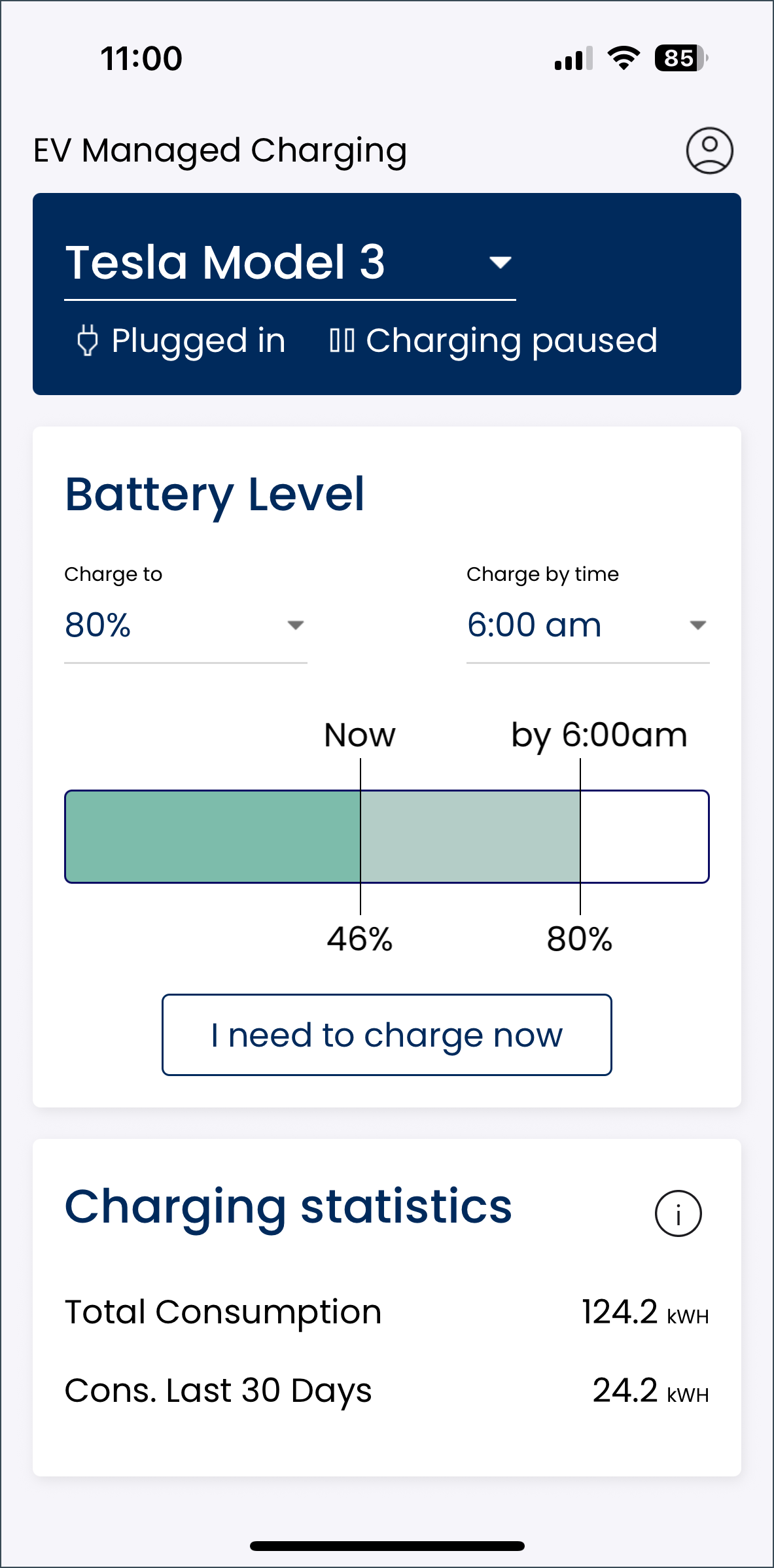
Upon logging in, the app displays the main screen. Until the driver signs out, this screen will appear each time they open the app.
From this screen, they can:
- View their charging status.
- Set their charging parameters.
- View the current battery level.
- Manually override the managed charging program and have their car start charging immediately.
- View all charging statistics.
- Switch between vehicles if they have multiple devices enrolled.
- Open the user account screen.
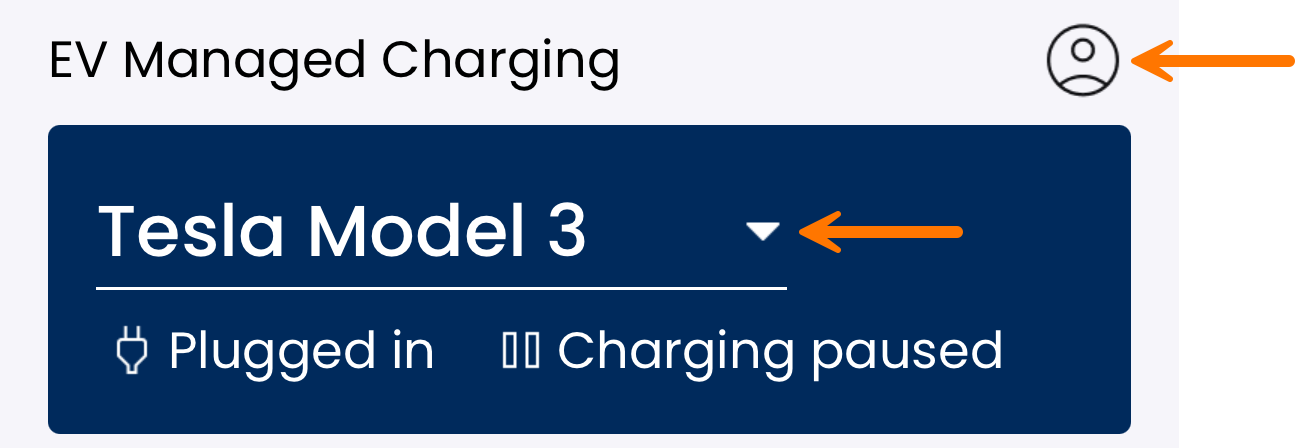
The top of the screen provides the vehicle's name and notes whether it is plugged in. If plugged in, a charging status is provided, noting whether the vehicle is charging, fully charged, or if charging has been paused. If the driver has multiple devices enrolled in the managed charging program, they can switch between devices by selecting the dropdown arrow next to the vehicle name, as highlighted in the image. To view or change the user account or to sign out of the app, the driver selects the person icon at the top right of the home screen, as highlighted in the image. |
 |
The middle of the screen provides the current battery level and charging settings. Using the dropdown fields highlighted in the image, the driver sets the percentage the vehicle will charge to and by what time of day. The managed charging program will consider these charging requirements when determining the vehicle's charging schedule. Thus, the driver will not be inconvenienced and can simply enjoy the program's incentives and the control it provides. EV manufacturers generally recommend charging EVs to 80% capacity to maintain battery health. Utilizing the ChargingRewards app means the driver does not have to worry about going past their manufacturer’s recommended percentage, as their vehicle will automatically stop charging once it has reached the set percentage parameter. The "I need to charge now" button is available if the vehicle has not yet reached the desired charge percentage and is plugged in but not currently charging. The driver selects this button to override the managed charging schedule and start charging now if desired. | 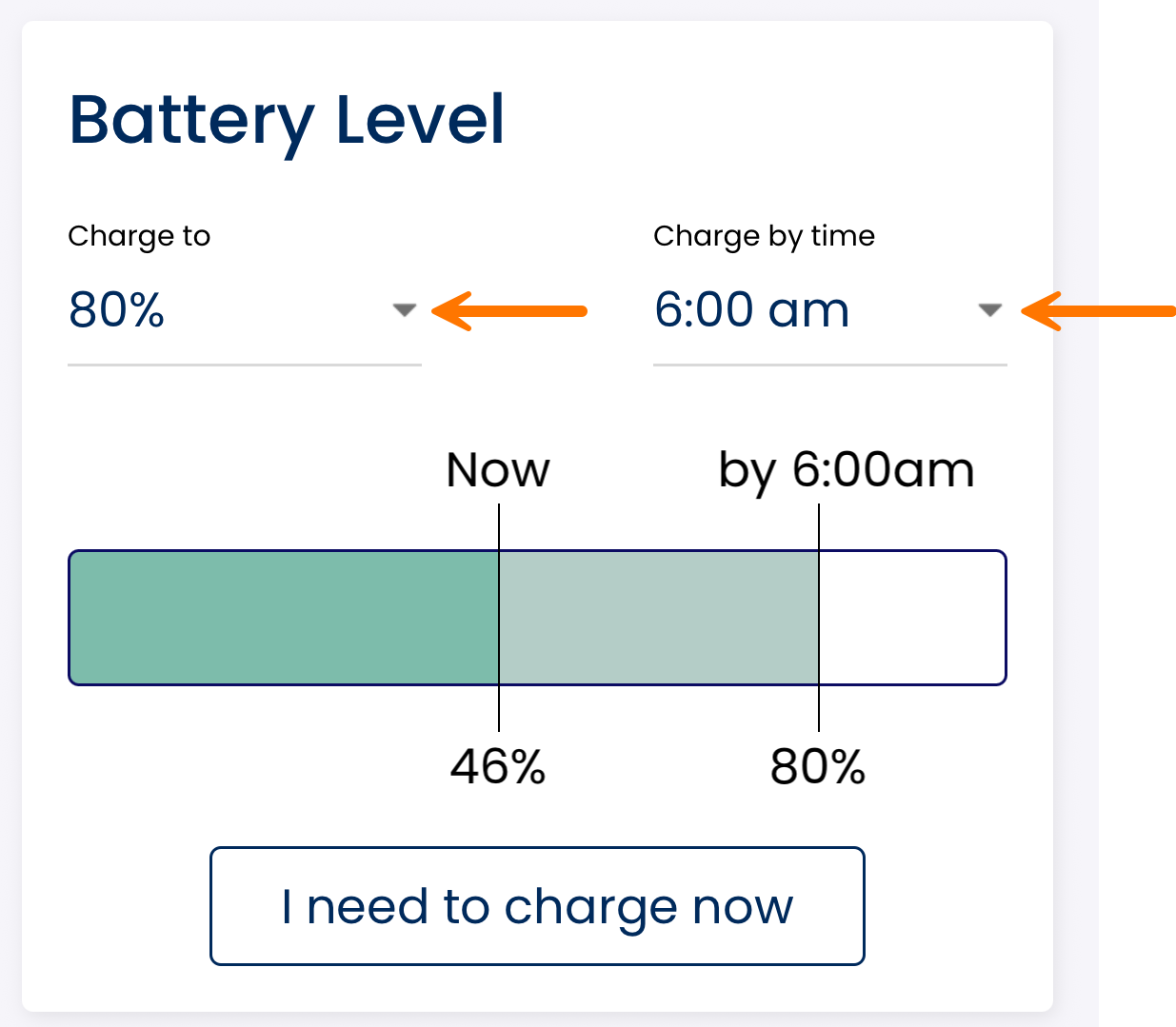 |
The bottom of the screen provides the following charging statistics:
An explanation of each metric is available by selecting the information icon at the top right of the block. | 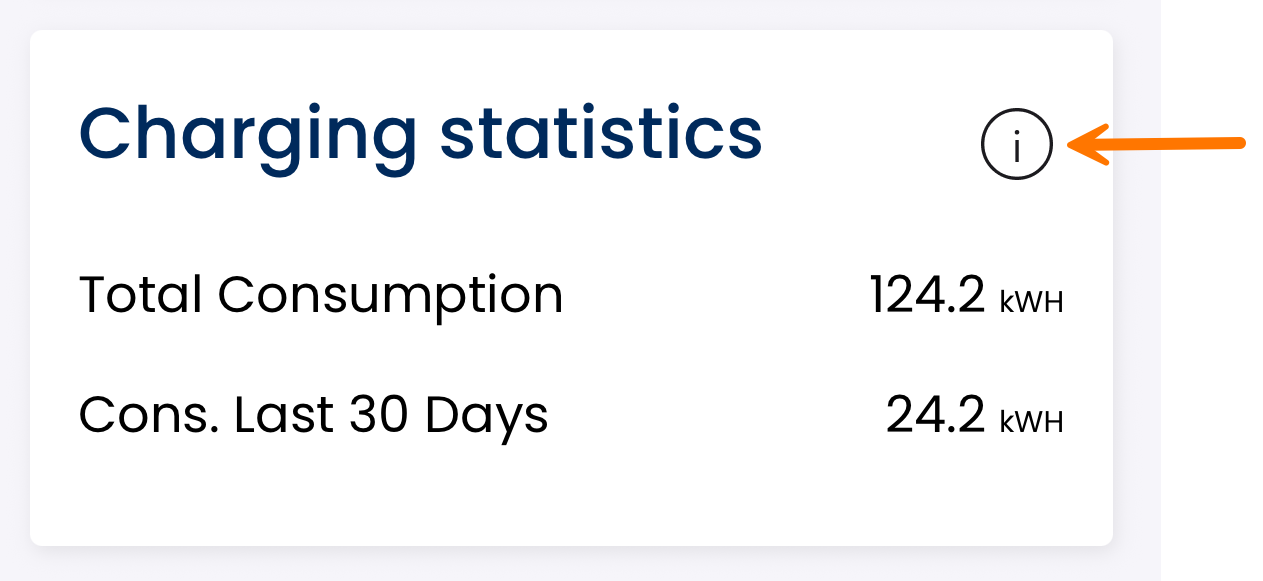 |